


Plan Checker Plugins - V18 First look
Introducing the Varian Eclipse Plan Checker
One of the most impactful additions in Eclipse Version 18 is the Varian Plan Checker — a built-in planning review module designed to streamline clinical plan evaluation before approval. Instead of relying on scattered checklists, institutional memory, and back-and-forth communication between dosimetry and physics, Plan Checker provides a standardized review step that lives directly inside Eclipse and runs against the currently open treatment plan.
Plan Checker launches from Tools → Plan Checker → Run Plan Checker and immediately evaluates the plan across multiple clinical domains — documentation, prescription, registration, contouring, plan configuration, and (when applicable) VMAT-specific design choices. Each item in the review is displayed with intuitive pass/fail icons, information prompts, or manual attestation checkboxes to ensure decisions are transparently recorded. Optional justification text is required for any alert override, helping ensure that clinical exceptions are carefully considered and documented.

What makes this feature exciting is not just the list of checks provided out-of-the-box, but the structure it establishes for proactive, documented, and repeatable plan quality review. Every institution has its own philosophies and tolerance levels regarding plan safety and plan consistency — and Plan Checker creates a first-class user interface for capturing those expectations, sharing them with every planner and physicist, and preserving the reasoning behind planning decisions in the patient record.
In short: Version 18 introduces a new level of transparency and standardization in the approval pipeline — and Plan Checker is the first step toward that vision.
The Plan Checker Plugin and Plan Checker Extension
Within the Varian plan checker, you have many automated and manual checks. Unfortunately for the automated checks, customization of tolerances for checks is not configurable (for instance to the Total MU check of Average Leaf Position Opening (ALPO) tolerances are not configurable by the user. Eclipse V18 exposes two related but distinct concepts for custom plan checking:
Plan Checker Plugin
Plan Checker Extensions
They’re designed to work together: the plugin script is the host (UI + orchestration), and the extension is where you define new automatic checks.
High-level comparison
Feature | Plan Checker Plugin | Plan Checker Extension |
Output | .esapi.dll (binary plug-in) | .dll library (not runnable on its own) |
How it runs | Launched from Tools → Scripts → [custom ESAPI DLL] | Never launched directly; loaded by custom Plan Checker script |
Role | Hosts the Plan Checker UI, assembles tabs, and wires up checks | Defines new automatic checks by inheriting from CheckBase |
Uses built-in automation types (AutomationCheckerConfiguration) | ✔️ Yes | ✔️ Yes (as building blocks, if desired) |
Adds brand new automatic check logic | ❌ Not by itself | ✔️ Yes – custom classes deriving from CheckBase |
Relationship to Varian Plan Checker | Separate, custom instance that looks and feels like Plan Checker | Not used by the Varian Plan Checker directly; consumed only by your script |
Best mental model | “My clinic’s custom Plan Checker app” | “A library of extra plan checks that my custom Plan Checker calls” |
In practice:
Your Plan Checker script is what the user actually runs. It opens the familiar Plan Checker window, defines the tabs, hooks up all the checks, and produces the report.
A Plan Checker extension is where you put any custom automatic checks that don’t exist in Varian’s built-in library. You write a class that inherits from CheckBase, implement your logic, and then your script calls into that extension to include those checks in the UI.
Inside a custom Plan Checker script you can call any of the built-in AutomationCheckerConfiguration-based checks Varian ships.– If new automatic checks (with custom logic) are desired, you build them in a Plan Checker extension and then wire them into your script.
Types of Plan Checks You Can Use in a Plan Checker Script
Within a Plan Checker script, you have access to several families of check “building blocks”:
AutomationCheckerConfiguration – wraps Varian’s built-in automatic checks (the list below). This is also where custom plan checks from plan check extensions can be included.
InformationCheckerConfiguration – information-only items for documentation and notes.
ManualCheckerConfiguration – manual questions / checklist items that require user confirmation (and sometimes justification text).
RegexCheckerConfiguration – pattern-based checks, great for enforcing structure/plan/beam naming conventions.
The built-in AutomationCheckerConfiguration checks are Varian’s “starter kit” of automatic rules. They’re extremely useful, but their tolerances and behavior are not directly editable. When you outgrow them—or want rules that don’t exist in this list—you reach for a Plan Checker extension and start writing your own CheckBase classes.
In this blog post, we build a Plan Check Plugin Script to build some custom plan check rules, saving a future blog post for a customized set of plan check extensions.
Building the Plan Checker Plugin
To start a custom Plan Checker plugin, open the Eclipse Script Wizard. Be sure to select the script type Plan Checker plugin. In the example below, the name of the script has been set to GatewayPlanChecker. Choose the location for saving the script and select Create. Open Visual Studio as prompted from the Script Wizard.

First, add the Window parameter into the execute method if you would like to see these checks in the similar window form as the Varian Plan Checker.

In this custom plan checker, two categories of plan checks will be established -- (1) High level checks on the patient and plan, and (2) Checks on the dose and dose calculation parameters. We will try to mix in the various types of plan checking configuration types. In the newly opened plan checking template, generate our first category-- plan checks. First we will have 2 information checks. The InformationCheckerConfiguration takes two constructor parameters, a name (string) and a IReadOnly<string> description. The description for both of these Informational checks has been left as null, as the description only shows in a tooltip over the check.
After, we have a ManualCheckerConfiguration for the date of birth. This will allow the user to check whether the date of birth for the patient is appropriate and correct. Here, a null string has been provided in the in the additional third question constructor argument. This argument seems to not be visible to the user in the UI of the plan checker. Finally a fourth constructor argument allows us to put in a text a description that is being verified by the user.
When utilizing the RegexCheckerConfiguration, remember AI code assistants like CoPilot, Claude, and ChatGPT are knowledgeable about Regex and can help developers come up with creative matching patterns.
Finally, the RegexCheckerConfiguration allows developers to validate string values using rules of Regex. In this configuration, the name of the property is the third configuration argument, here "Course.Id". The last constructor argument is the Regex expression to check that the current date's year attribute is at the end of the course Id property. Once all the checks have been configured, a ProcessStageConfiguration is instantiated -- this is the tab for the plan checks -- and checks are added. Note that the ProcessStageConfiguration has an optional parameter for the CheckerPlanType, allowing the developer to hide or show the tab based on the type of plan being checked.
// TODO : Add here the code that is called when the script is launched from Eclipse.
List<CheckerConfiguration> planChecks = new List<CheckerConfiguration>();

// Information only checks for patient Id and plan Id
planChecks.Add(new InformationCheckerConfiguration($"Patient Id: {context.Patient.Id}", null));
planChecks.Add(new InformationCheckerConfiguration($"Plan Id: {context.PlanSetup.Id}", null));

// Check Date of Birth manually by user.
planChecks.Add(new ManualCheckerConfiguration("DOB Check",
	new List<string>
	{
		"Verify patient's date of birth is correct."
	}.AsReadOnly(),
	"Is patient date of birth appropriate?",
	context.Patient.DateOfBirth != null ? $"Is {context.Patient.DateOfBirth.Value.ToShortDateString()} correct?" : "No patient date of birth!"));

// Perform Regex check to ensure course Id has year included.  planChecks.Add(new RegexCheckerConfiguration(
	"Course Name Check",
	new List<string> { "Course must have current year." }.AsReadOnly(),      "Course.Id",
	$@"{DateTime.Now.Year}$"));

// Create new tab and add checkers to it, uncomment CheckerPlanTypes parameter if you want to restrict the Tab visibility
ProcessStageConfiguration planStage = new ProcessStageConfiguration(
	"Plan",
	new List<string> { "Checks regarding patient or plan information" },     planChecks /*, CheckerPlanTypes.None */);
For the second set of checks, generate a new CheckerConfiguration list. First, another ManualCheckerConfiguration is added that checks against the dose calculation algorithm utilized in the plan -- with a small check on whether to retrieve the photon calculation algorithm or the electron calculation algorithm. Notice that the description is providing some user feedback on what to expect in case the physicist performing the plan check needs a reminder of how the check should be implemented. Users can see these descriptions on hover over the check name.
The next two checks will leverage the AutomaticCheckerConfiguration type. These are leveraging the built-in plan checks from the Varian plan checker. The first constructor parameter to the Automatic plan checker is to input the type of plan check to be utilized. Since the check is automated, the last parameter is the return string that the user gets on hover if the check passes. After the dose checks have been added to the collection, a new ProcessStageConfiguration object is generated for a Dose tab. Finally a list of ProcessStageConfiguration types is generated, added to a PlanCheckerConfig object and passed into the RunAllChecks method. This method also takes the window parameter to show the user interface.
List<CheckerConfiguration> doseChecks = new List<CheckerConfiguration>();
doseChecks.Add(new ManualCheckerConfiguration(
	"Calculation Algorithm Verification.",
	new List<string>
	{
		"AXB should be used for lung cases.",
		"AXB should be used when target is in a region of low density",
		"AXB should be used when high densities appear in the target."
	},
	"Is Dose Calculation Algorithm appropriate.",
     $"Is {(context.PlanSetup.Beams.Any(b => b.EnergyModeDisplayName.Contains("E")) ?
	context.PlanSetup.ElectronCalculationModel :
	context.PlanSetup.PhotonCalculationModel)} appropriate?"));
//use build-in Treatment Unit Checker
doseChecks.Add(new AutomaticCheckerConfiguration(
	typeof(TreatmentUnitChecker),
     "Treatment Unit Check",
     new List<string> { "Check that treatment unit is in the same department as patient" },
     "Treatment unit appropriate for the patient."));

//use built-in fraction number checker.
doseChecks.Add(new AutomaticCheckerConfiguration(
	typeof(FractionNumberChecker),
	"Number of Fractions",
	new List<string> { "Check number of fractions against prescription." },
    "Number of fractions matches Rx"));

//Add to a new tab called Dose
ProcessStageConfiguration doseStage =new ProcessStageConfiguration(
	"Dose",
	new List<string> { "Checks regarding dose calculation and prescriptions" },
	doseChecks);
	List<ProcessStageConfiguration> stageConfigurations = new List<ProcessStageConfiguration>();
	stageConfigurations.Add(planStage);
	stageConfigurations.Add(doseStage);
     PlanCheckerConfig planCheckerConfiguration = new PlanCheckerConfig(stageConfigurations);

// Remove the window parameter if you want to skip UI generation and only show the report.
planChecker.RunAllChecks(planCheckerConfiguration, window);
Notes on Automatic Checkers
At first, the AutomaticCheckerConfiguration type can be challenging to develop against. A full list of these plan checks are available in Visual Studio by accessing the Checks namespace from the dot operators as seen below:

Each of these checks can be viewed in Visual Studio's inspection element features. For example, it can be seen that the TreatmentUnitChecker returns an Error if the treatment unit does not have a department, a Question if the configured treatment units contain the current treatment unit, and again an Error if the configured treatment units collection does not contain the current plan's machine Id.
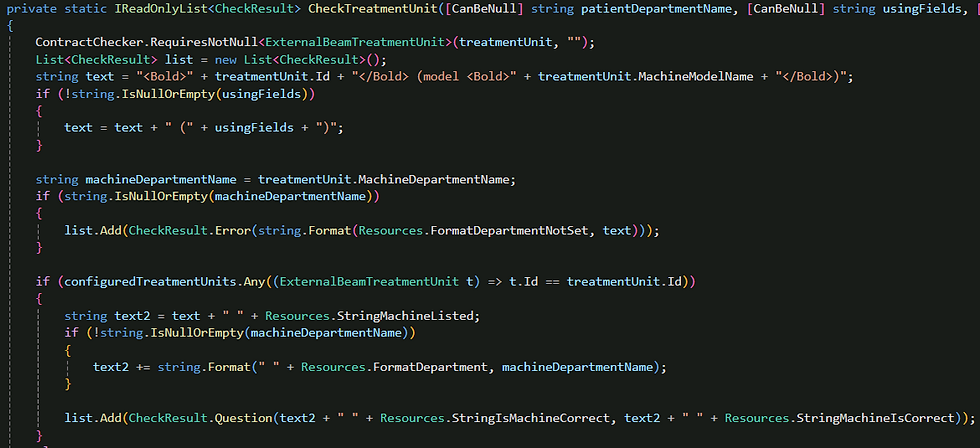
For completeness here is the code that runs when the FractionNumberChecker is invoked. This code returns an Error if there is no prescription associated with the plan or the plan and Rx fractions do not match, and a Success if the number of fractions match between the plan and the prescription.

Running the Plan Checker Plugin Script
The plan checker plugin runs exactly as a binary plugin. Simply compile the plugin from Visual Studio. The compiler will store a file with extension .esapi.dll in the Plugins folder. Navigate to the compiler location from within Eclipse and find the plugin that was just compiled. Initially, when the plan checker opens, the "Plan" checks are immediately visible.
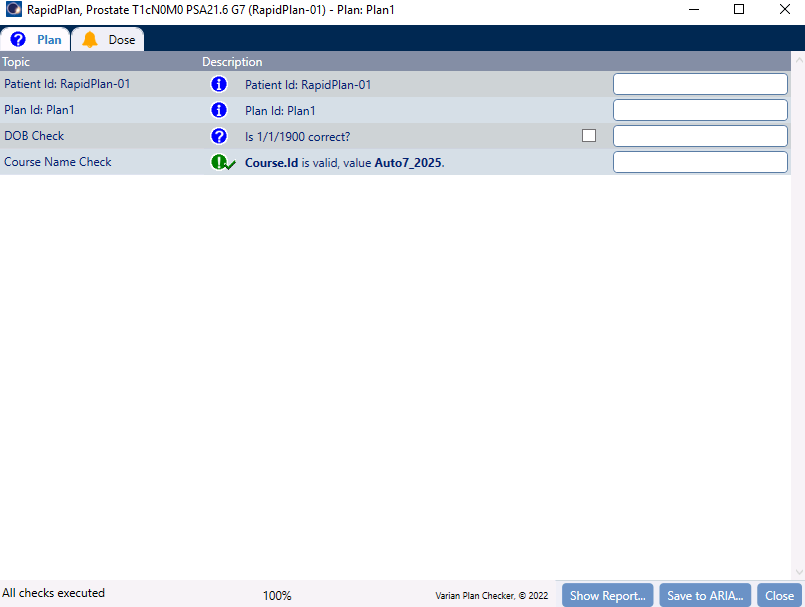
In the "Dose" tab, it is shown how the Description is available on hover over the check name. Also, please note how when all the checks are verified, the tab itself gets a small checkmark to assist the user in the organization of the plan check across multiple tabs.

Conclusion
The Varian Plan Checker in Eclipse v18 marks a major step forward in standardizing treatment plan review. Even without customization, it provides a structured, auditable workflow that reduces dependence on memory, internal conventions, and informal checklists. But its real power becomes apparent once clinics begin leveraging the Plan Checker plugin framework — bringing institutional tolerances, naming rules, safety guardrails, and documentation expectations directly into the planning environment.
In this post, we walked through how to create a custom Plan Checker plugin, how to mix information checks, manual checks, regex checks, and built-in AutomationCheckerConfiguration checks, and how to present them using the familiar Plan Checker UI. This approach allows clinics to tailor plan QA processes without reinventing reporting, justification handling, or the user interface.
In a future blog post, we’ll go one step further and explore Plan Checker extensions — the mechanism that allows developers to define entirely new automatic checks by deriving from CheckBase, enabling custom QA logic beyond Varian’s built-in rule set.
For those who want to dive deeper or adapt the example from this post, the full source code for the GatewayPlanChecker demonstration project is available in the GatewayPlanChecker_BlogExample Github repository. Even for the ESAPI developers that have institution specific plan checkers in the production environment already, the customization of the Varian plan checker makes it an attractive option.

Comments