


Automated Planning from Templates IV: Unlocking Real-Time Feedback from Eclipse
Background
Several blog posts in this series have walked step-by-step through the development of an automated treatment planning application using the Eclipse Scripting API (ESAPI). This automated planning app moves beyond simple scripting and toward building a robust, user-facing application that can reliably generate treatment plans from predefined templates.
In the first installment, Automated Treatment Planning from Templates, we introduced the core architecture of the application. This included loading clinical templates, creating plans programmatically, and applying a consistent structure and beam setup. The focus was on demonstrating how ESAPI can be used to standardize planning workflows and reduce manual effort while maintaining clinical consistency.
In the second post, Automated Planning from Templates II: RapidPlan Optimization, we extended the application by integrating RapidPlan optimization. This allowed the script not only to generate plans, but also to intelligently optimize them using a trained model. At this stage, the application began to resemble a true clinical tool—capable of producing high-quality plans with minimal user interaction.
This automated planning app moves beyond simple scripting and toward building a robust, user-facing application that can reliably generate treatment plans from predefined templates.
The third installment, Automated Planning from Templates III: Multi-Threading, focused on improving the user experience. We introduced multi-threading to prevent the UI from freezing during long-running operations such as optimization and dose calculation. Alongside this, we implemented a basic progress bar to give users visibility into the workflow as it executed. While this was a major improvement, the feedback provided to the user was still relatively coarse—limited to high-level steps in the process.
In this fourth installment, we take that concept a step further. Rather than relying solely on manually defined progress updates, we will tap into the underlying output generated by Eclipse during optimization and dose calculation. By capturing and interpreting this information, we can provide more granular, real-time feedback to the user—enabling multiple progress indicators and richer contextual messaging within the application. This approach allows us to bridge the gap between what Eclipse knows internally and what our application can communicate to the end user.
Updating the App
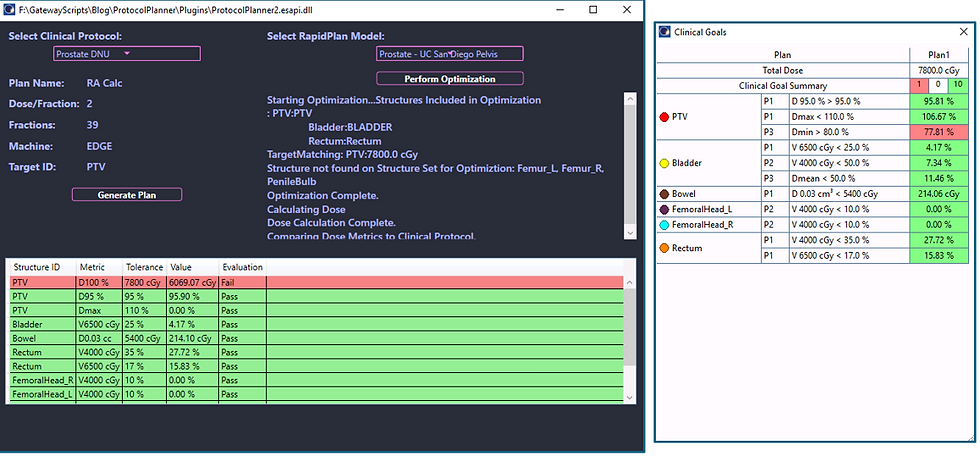
In the app's current iteration, a plan is generated after selecting a Clinical Protocol Template and then after a RapidPlan model is selected, the user can select Optimize to perform the DVH Estimation, Optimization, and Dose Calculation. To update this application, we will first make a few minor updates to the UI. We want to add 2 more Progress Bars to show the differences in the data extractable by listening to the ESAPI output. Within the MainView.xaml, the current progress bar (in bold) is is wrapped inside of a StackPanel. Within this stackpanel, header textblocks are placed along with 2 more progress bars to track optimization and dose calculation specifically.
<StackPanel Grid.Row="1" Grid.ColumnSpan="2">
<TextBlock Text="Total Progress"/>
<ProgressBar Height="30" Margin="10"
Minimum="0" Maximum="100" Value="{Binding ProgressValue}"
/>
<TextBlock Text="DVHEstimation"/>
<ProgressBar Height="30" Margin="10"
Minimum="0" Maximum="100" Value="{Binding DVHValue}"/>
<TextBlock Text="Optimization"/>
<ProgressBar Height="30" Margin="10"
Minimum="0" Maximum="100" Value="{Binding OptimizationValue}"/>
</StackPanel>
Remember to create the MainViewModel properties for these progress values. With those properties in place, we want to build a listener for messages into the output window. First, a class is generated called EsapiOutputListener. We place this class in the Services folder. Please note that we are excluding strings that start with "The thread" as this string appears in many outputs unrelated to the ESAPI work. More strings can be added to this later to further manipulate the feedback to the user.
public class ESAPIOutputListener : TraceListener
{
private readonly Action<string> _onMessageReceived;
public ESAPIOutputListener(Action<string> onMessageReceived)
{
_onMessageReceived = onMessageReceived;
}
public override void Write(string message)
{
// Handle partial messages
if (!string.IsNullOrWhiteSpace(message))
{
_onMessageReceived?.Invoke(message);
}
}
public override void WriteLine(string message)
{
if (!string.IsNullOrWhiteSpace(message) && !message.StartsWith("The thread"))
{
_onMessageReceived?.Invoke(message);
}
}
}
Implementing this into the code is simple. It includes creating an instance of this EsapiOutputListener, and passing the message to our CalculationLog property. This will add all outputs into the app where the regular calculation update messages are posted.
ESAPIOutputListener listener = null;
try
{
listener = new ESAPIOutputListener(message =>
{
CalculationLog += "\n" + message;
});
Trace.Listeners.Add(listener);
The EsapiOutputListener
At the core of this approach is the TraceListener class. In .NET, TraceListener is part of the System.Diagnostics namespace and is designed to receive output from tracing and debugging operations. Whenever a component writes to Trace.Write or Debug.Write, those messages are routed through a collection of listeners. By creating a custom listener, we can “subscribe” to these messages and handle them however we choose.
In this implementation, we define a custom class called ESAPIOutputListener that inherits from TraceListener. This allows us to intercept any trace messages emitted during the execution of our ESAPI script. The class accepts an Action<string> delegate through its constructor. This delegate acts as a callback function. Instead of hardcoding how messages are handled, we pass in a method from elsewhere in the application—typically something that updates the UI, logs messages, or parses progress information. This keeps the listener flexible and reusable.
By inserting this custom TraceListener into the application, we effectively create a bridge between Eclipse’s internal processing and our own user interface. Instead of relying on coarse, manually defined progress updates, we can now:
Capture real-time feedback during optimization and dose calculation
Parse meaningful progress indicators directly from Eclipse output
Drive multiple progress bars with more granular detail
Display contextual messages to the user as the process evolves
This transforms the application from a “black box” into something much more transparent and interactive, significantly improving the user experience—especially for long-running planning workflows.
Shaping the Output
When running the automation sequence with this app, the CalculationOutput is going to have many more strings than previous runs.

There are some messages that can help us improve the user experience.
The Information appears many times. That string can be removed similar to "the thread" string.
During DVH Estimation, a Progress message shows the current progress.
Optimization updates start with Iteration. Currently, the app shows 4 iterations corresponding to the MR Level of the optimization.
To leverage these messages, the following code is added to the implementation of the EsapiOutputListener. The message is checked for the string starting with Progress. That message shows the updates to the DVH Estimation. The Iteration string appears during each MR level which is currently 4.
private void OnOptimize(object obj)
{
_esapiWorker.Run(scrptx =>
{
ESAPIOutputListener listener = null;
try
{
listener = new ESAPIOutputListener(message =>
{
if (message.StartsWith("Progress"))
{
DVHEstimationValue = Convert.ToInt16(message.Split(' ').Last().TrimEnd('%'));
}
else
{
if (message.StartsWith("Iteration"))
{
OptimizationValue += 25;
}
CalculationLog += "\n" + message;
}
});
Trace.Listeners.Add(listener);
CalculationLog = "Starting Optimization...";
ProgressValue = 10;//10
Please note: the optimization messages may vary depending on the optimization setup. This app currently does not perform intermediate dose calculations as the false parameter in the method below turns off intermediate dose. Try this code with true and determine how the output changes.
var dvhe_response = _clinicalProtocols.OptimizeFromRapidPlanModel(scrptx.Calculation.GetDvhEstimationModelStructures(SelectedRapidPlanModel.ModelUID),
AutoPlan,
SelectedRapidPlanModel,
null,
null,
false);//false for testing.
The application now shows growing progress bars for different message responses. These could be combined into one or built into a more proper messaging system. This allows the developer to design the UI response in different ways.

Conclusion
With this final installment, we’ve taken the automated planning application one step further—from simply executing tasks in the background to actively communicating what’s happening under the hood. By leveraging the output generated by Eclipse during optimization and dose calculation, we can provide users with a much more transparent and responsive experience. What was once a single, high-level progress bar can now be expanded into multiple, meaningful indicators that reflect the true state of the planning process.
More importantly, this approach shifts how we think about ESAPI application design. Rather than treating Eclipse as a black box, we can begin to surface its internal feedback in a way that enhances usability and builds confidence in the automation. Users are no longer left wondering whether the application is still running or where it might be in the process—they can see it unfold in real time.
Across this series, we’ve moved from basic template-driven plan generation, to integrating optimization, to improving performance with multi-threading, and now to delivering real-time feedback. Each step has brought the application closer to something that is not just functional, but truly usable in a clinical setting.
This code has been pushed to an esapi_output branch in github if you'd like to explore the code for yourself.

Comments